Vimera icon

Any video,
as your webcam.

Vimera turns a video file, a live stream or a feed from OBS into a camera that FaceTime, Zoom, Teams, Meet and every other app on your Mac can use.

For macOS 15 Sequoia or later. Everything runs on your Mac: no account, no cloud.

Vimera's window playing a video file into the Vimera Camera
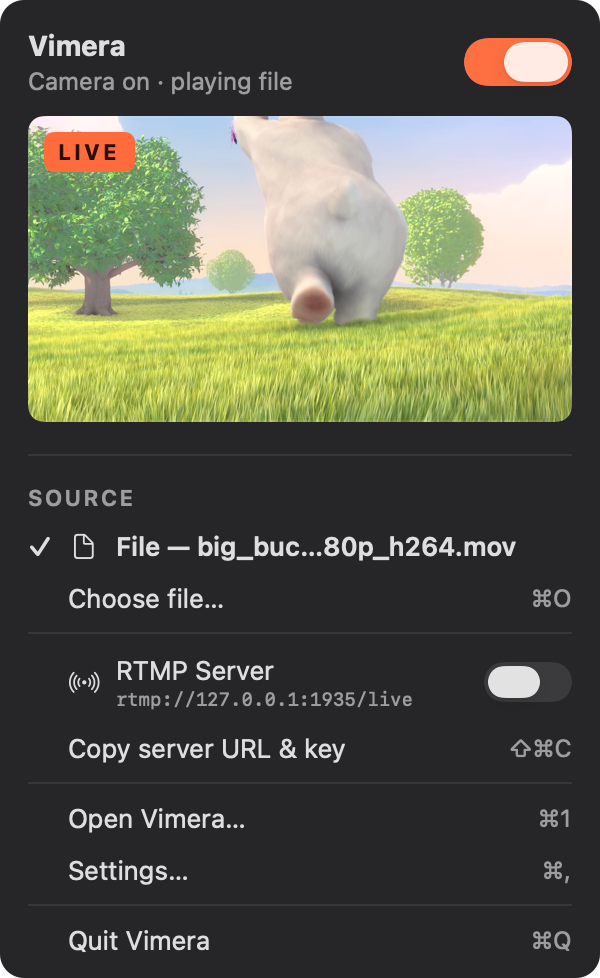
Vimera's menu bar panel with a live preview

How it works

A camera like any other.

Vimera adds “Vimera Camera” to your Mac. Pick it in any app, the way you'd pick a USB webcam, and it shows whatever you play in Vimera.

1

Install Vimera

Get it from the Mac App Store. It lives in the menu bar, out of your way.

2

Allow the camera

Click Install Camera and approve it once in System Settings. That's the only setup.

3

Play something

Choose a video file or paste a stream URL, turn the camera on, and select Vimera Camera in your call.

FaceTimeZoomMicrosoft TeamsGoogle MeetSlackWebexDiscordOBSPhoto Booth

Video files

Play a video, on a loop.

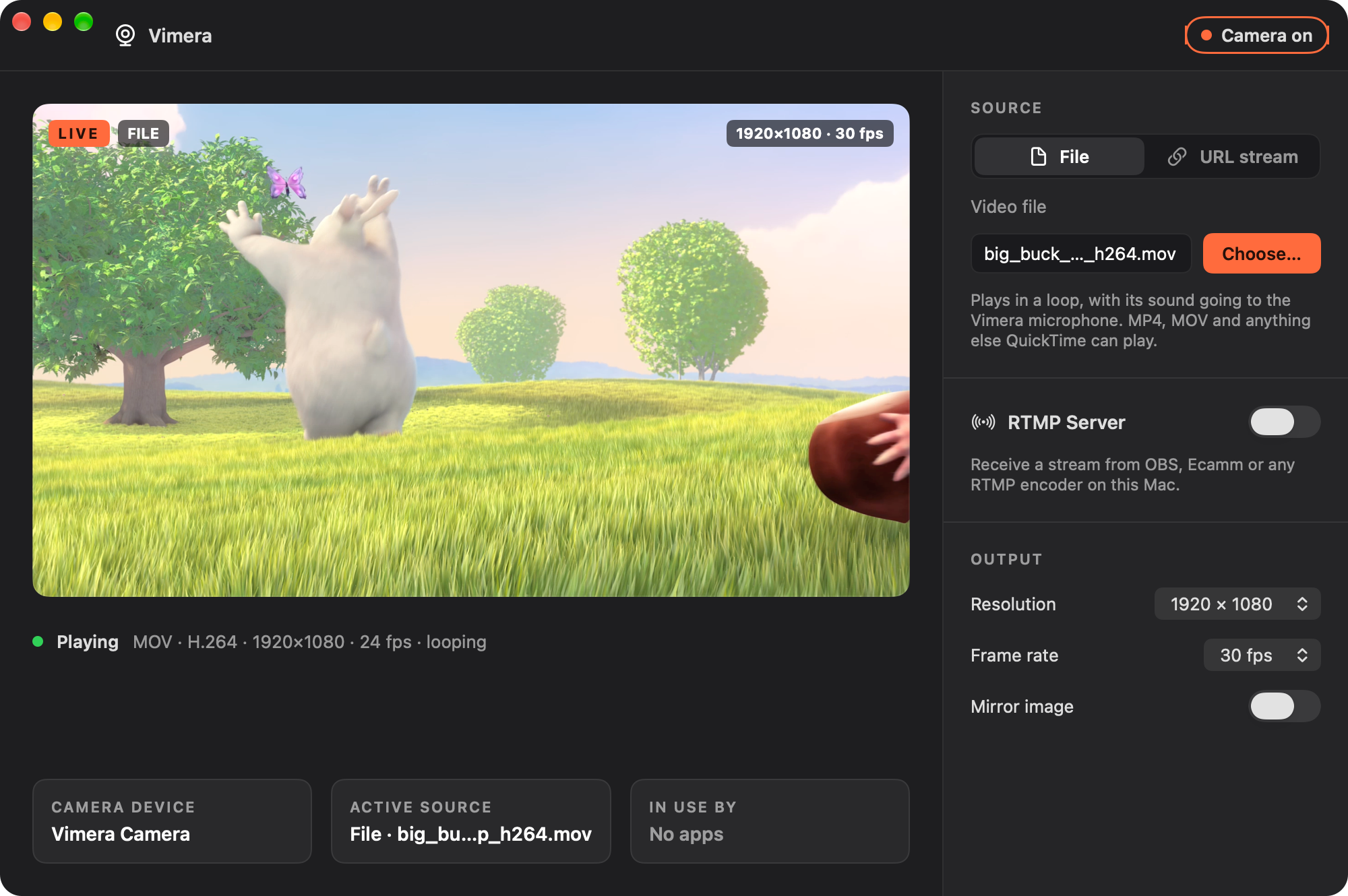
Choose a movie and the Vimera Camera plays it over and over, scaled and timed to whatever resolution the call asks for.

  • MP4, MOV and anything else QuickTime plays, including HEVC and ProRes
  • Hardware decoding, so even 4K sources barely touch the CPU
  • 1080p or 720p output, at 24, 25, 30 or 60 fps
  • Mirror the picture with one switch
A video file playing in Vimera

Live streams

Bring a live stream into the call.

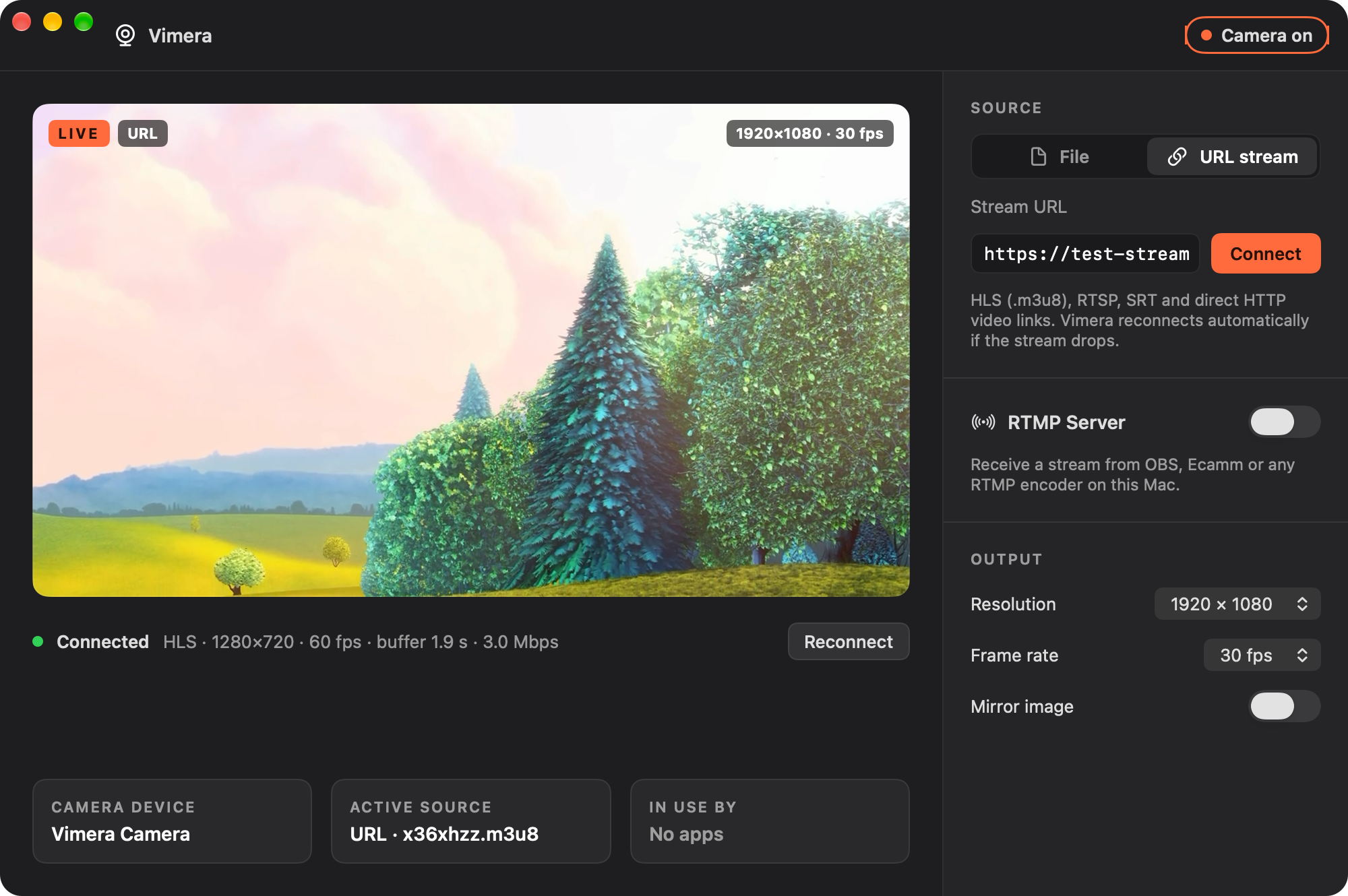
Paste a stream URL and Vimera puts it on camera live, with its sound if you like.

  • HLS (.m3u8), RTSP, SRT and direct HTTP video links
  • Reconnects on its own if the stream drops
  • Deinterlaces broadcast TV and IPTV streams
  • Live stats: protocol, buffer and bitrate at a glance
A live HLS stream connected in Vimera

RTMP server

Your OBS scene, as a webcam.

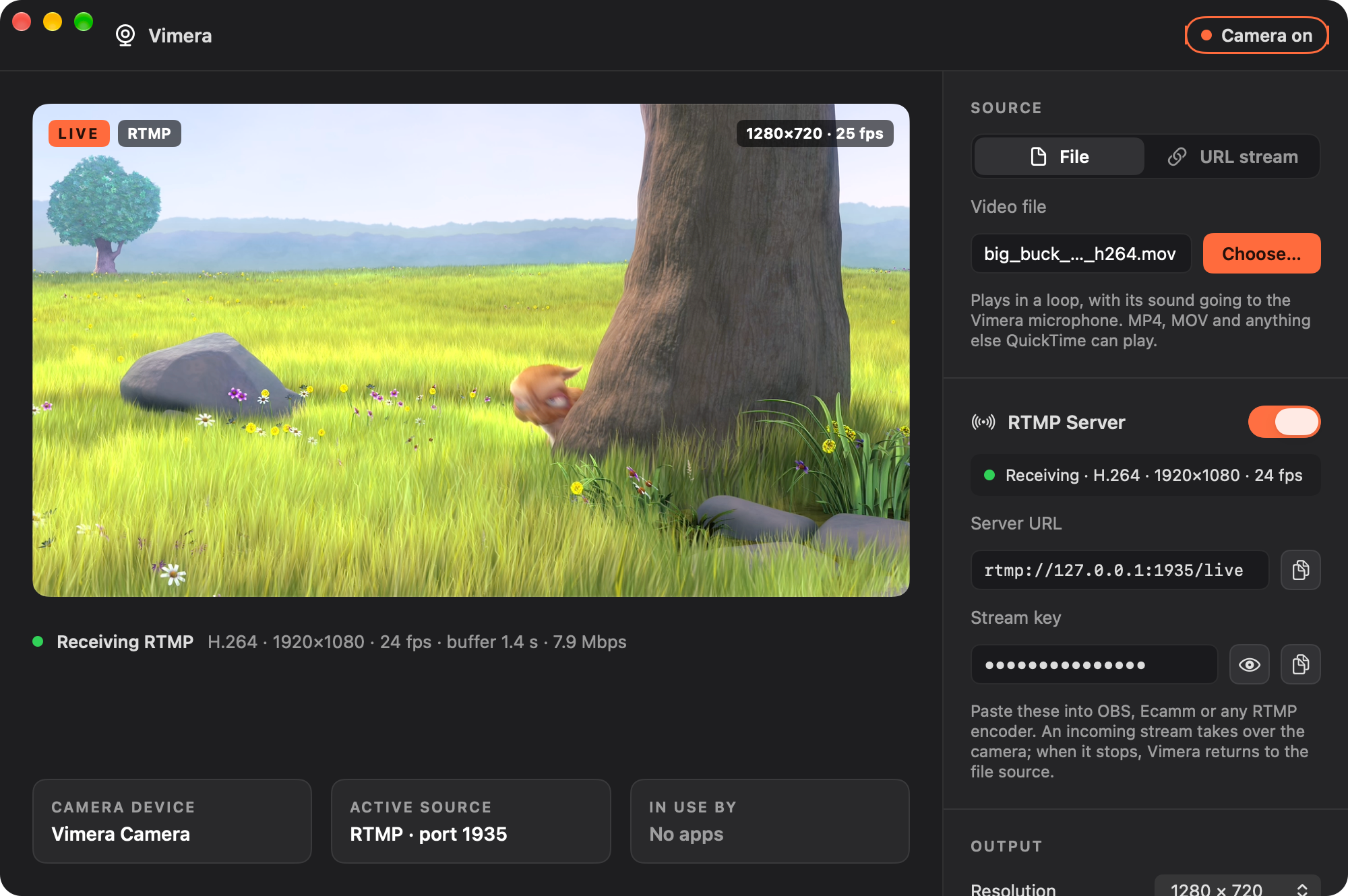
Vimera includes an RTMP server. Point OBS, Ecamm or any encoder at it, and your scenes, overlays and titles go straight into the call.

  • Copy the server URL and stream key with one click
  • An incoming stream takes over the camera; when it stops, Vimera goes back to your file or URL
  • The stream key is enforced: encoders with the wrong key are refused
  • Listens on this Mac only, or on your network if you choose
Vimera receiving an RTMP stream from an encoder

Menu bar

Always one click away.

Turn the camera on or off, switch source and check the picture without opening a window. The icon tells you what's on air.

  • A live preview of what the camera sends
  • Hollow lens when off, filled when on, a dot when an encoder is connected
  • See which apps are using the camera right now
  • Opens at login, so the camera is ready for your first call

Built in

Made for the Mac, and for calls.

A real camera

A modern macOS Camera Extension, so every app sees it, including Safari and Chrome for web calls.

Sound too, if you want

The optional, free Vimera Audio driver adds a microphone that carries the video's sound into the call.

Light on your Mac

Decoding, scaling and mirroring happen on the GPU. Apple silicon and Intel, natively.

Private

No account, no analytics, no cloud. Your videos and streams never leave your Mac, except into your call.

Never a frozen frame

Turn the camera off and the call shows a clean “camera is off” card instead of a stuck picture.

From the App Store

Sandboxed and reviewed by Apple, with updates delivered the usual way.

Download

Get started.

Vimera is all you need for video. Add Vimera Audio if you want the video's sound in your calls too.

Vimera

The app and the Vimera Camera · Version 1.0

  • macOS 15 Sequoia or later
  • Apple silicon and Intel
  • Asks once to install the camera, in System Settings

Vimera Audio

Optional microphone driver · Free · Version 1.0

  • Adds a “Vimera Audio” microphone carrying the video's sound
  • Signed with Developer ID and notarized by Apple
  • Installs for all users; asks for your password once

Audio drivers aren't allowed in the App Store, so Vimera Audio is a separate download. Vimera works fully without it.